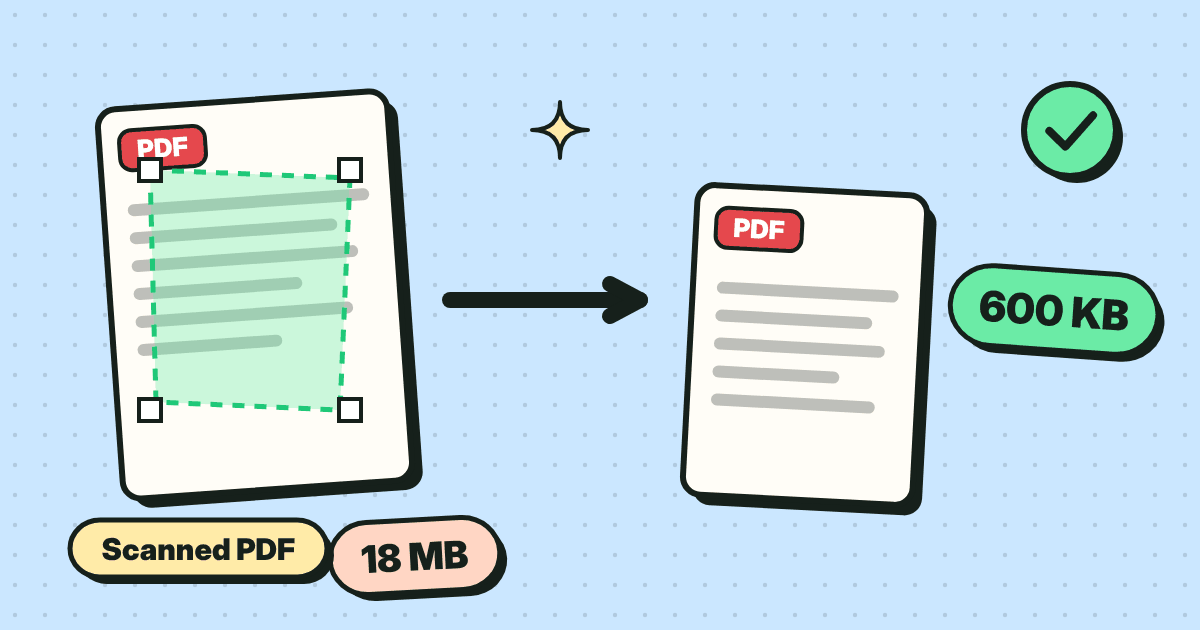
A typed Word document saved as PDF is a few hundred kilobytes. The same pages printed and scanned can be 20 MB. Nothing is wrong with the file. A scanned page contains no text at all, only a picture of a page, and a picture of an A4 sheet at 300 dpi holds about 8.7 million pixels.
What the size depends on
Three things decide how big a scan gets: how many pixels each page has, whether those pixels carry colour, and how hard the picture is compressed. A scanner app that saves at 600 dpi in full colour with light compression produces the heaviest files. The same page at 150 dpi in grey with normal compression is often twenty times smaller and, for a contract or an ID copy, just as readable on screen.
Printing is the exception. If somebody will print the scan at full size and needs to read fine print, 200 dpi is a safer floor than 150.
Shrinking an existing scan
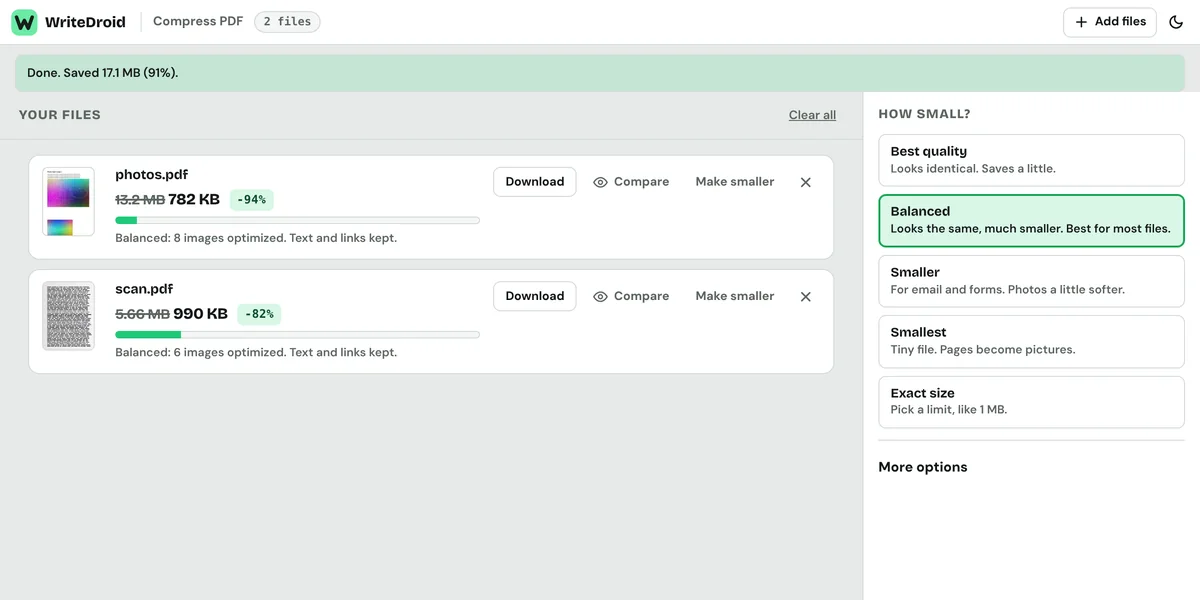
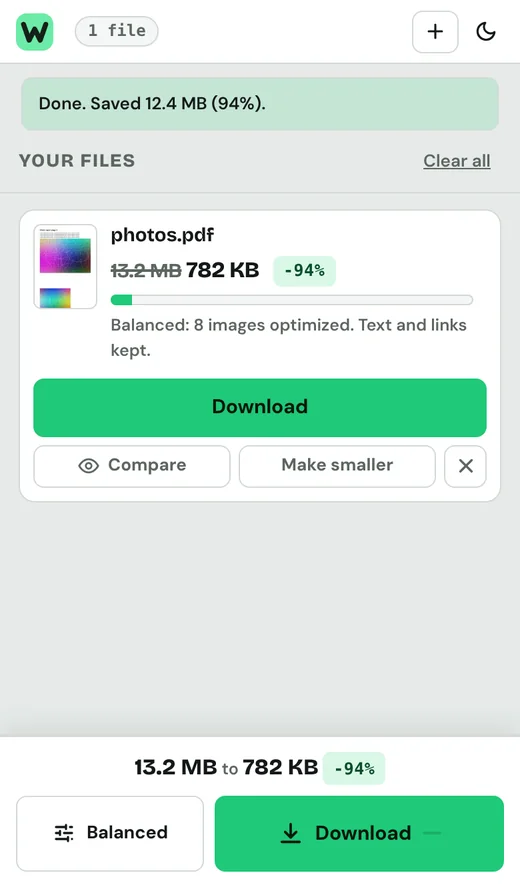
Open the PDF compressor, add the file and leave it on Recommended first. The tool measures how large each picture appears on the page and reduces anything that carries more pixels than the page can show, then recompresses it. For a typical phone scan this alone takes a 12 MB file to 1 or 2 MB.
If a form asks for a specific limit, switch to Exact size and pick 1 MB, 500 KB or 200 KB. The tool tries several quality levels and keeps the best one that fits. Look at the preview before downloading, because a very small target on a dense page can cost legibility.
Check the places that fail first
Use the before and after slider and look at the parts of the page that break first when compression goes too far:
- Small print in contracts and the footer of invoices
- Stamps and handwritten signatures, where thin lines turn to mush
- Photos on ID cards, which show blocky patches before anything else does
- Pale pencil or light grey text on a white page
If any of these look worse than you accept, go back one step. A file that is 400 KB bigger but legible is better than one an official rejects because it cannot be read.
When the scan is still too large
Colour is the next lever. A black text page scanned in colour carries three channels of data that add nothing, so the Black and white option under More options saves a lot on text documents. Do not use it for pages with photos or coloured stamps.
Remove pages that nobody needs, such as blank backs and cover sheets, with the PDF editor before you compress. And if you are about to create the scan, not fix one, you can save yourself the whole problem: crop to the page edges in the image scanner so the background is not stored, and shrink the photos first with the image compressor.
Text you can no longer select
A scan never had selectable text, so compressing it loses nothing there. If you need searchable text, that takes a separate step called OCR, which neither tool does. For forms that only need a readable copy, a compressed scan is what they expect.
Common questions
How small can a scanned page get?
A clean black and white text page can reach 30 to 60 KB. A colour page with a photo usually needs 150 to 300 KB to stay clear.
Does compressing a PDF upload it?
No. The work happens in your browser, so the file stays on your device.
Is it better to scan at a lower resolution or compress afterwards?
Either works. Scanning at 150 to 200 dpi in the first place avoids the extra step, but compressing afterwards lets you keep the high resolution original for yourself.
Scanned many pages as separate files?
Join the scans into one document with the PDF Merger before you compress, so you only have one file to shrink and share.